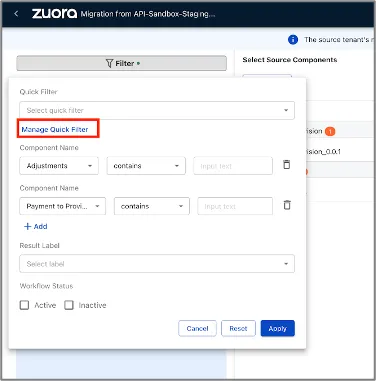
Data managementDeployment ManagerDeployment Manager features and operationsFilters in Deployment ManagerCreate and save a quick filterAsk a question|Copy page|View as Markdown|More actionsThis page is for Docs.Learn how to create, customize, and save quick filters for future use. Quick filters allow you to customize and save a filter for later use. You can save, edit, and delete a filter condition. 1Click the Filter icon in the Select Source Components window.2In the Quick Filter pop-up, click Manage Quick Filter.3Click Add Create Quick Filter.4In the Create Quick Filter pop-up window, enter a filter Name, search criteria, and operator.5(Optional) To add more filter components, click Add.6(Optional) Select a Result Label from the dropdown.7Click Save to save the filter for future use. Alternatively, you can Save and Apply the filter for immediate use. You can view the saved filters in the quick filter field.