

Skip to navigation

Deploy metadata from GitHub repository

View as Markdown

Learn how to deploy a template by navigating the interface, initiating a deployment, and uploading templates from a repository.
1

From the main menu, navigate to Administration > Deployment Manager.

2

Click the +New icon to initiate a deployment.

3

Select Upload Template.

4

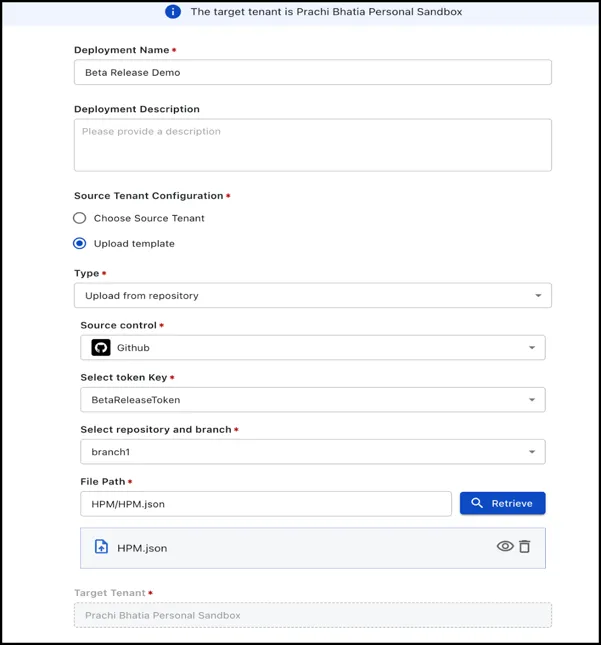
In the Type dropdown, select the upload from repository option and enter the following details:

Deploy metadata from repository

ParameterValue
TypeUpload the template from the repository or upload from local.
Select Token KeyThe Unique identifier provided at the time of mapping Deployment Manager to GitHub.
Select repository and branchEach repository in GitHub is tagged to a branch, select the applicable branch.
File pathFile path is copied from the GitHub repo. It is the path of the json file that is stored repo>file name>click on copy path.
Commit MessageA brief description should be given for maintaining a record in GitHub, this can be the user story no or any description that will assist in tagging the file versioning and changes.

The Retrieve button will automatically upload the template from the repository.

Copying the file path from Github

To copy the file path, navigate to the file in the repository, select the file name, and click Copy path. For example, consider the file example.py located under the sample-repo repository in the main branch

  1. Navigate to https://github.com/username/sample-repo.

  2. Find and click on the src directory.

  3. Click on example.py to open the file.

  4. The breadcrumb navigation will show: sample-repo / src / example.py.

  5. The full file path URL will be: https://github.com/username/sample-r…src/example.py. You can now copy this URL and use it as the file path. If you want to copy the relative path within the repository, you can use the breadcrumb path directly: src/example.py.

    Sample file for metadata