

Upload a CSV file in a workflow
Learn how to attach a CSV file to a workflow for data processing.
You can directly upload a CSV file to a workflow. After the file is uploaded, you can select the file as a data object or reference specific data fields of the file using Liquid template language in all tasks of the workflow.
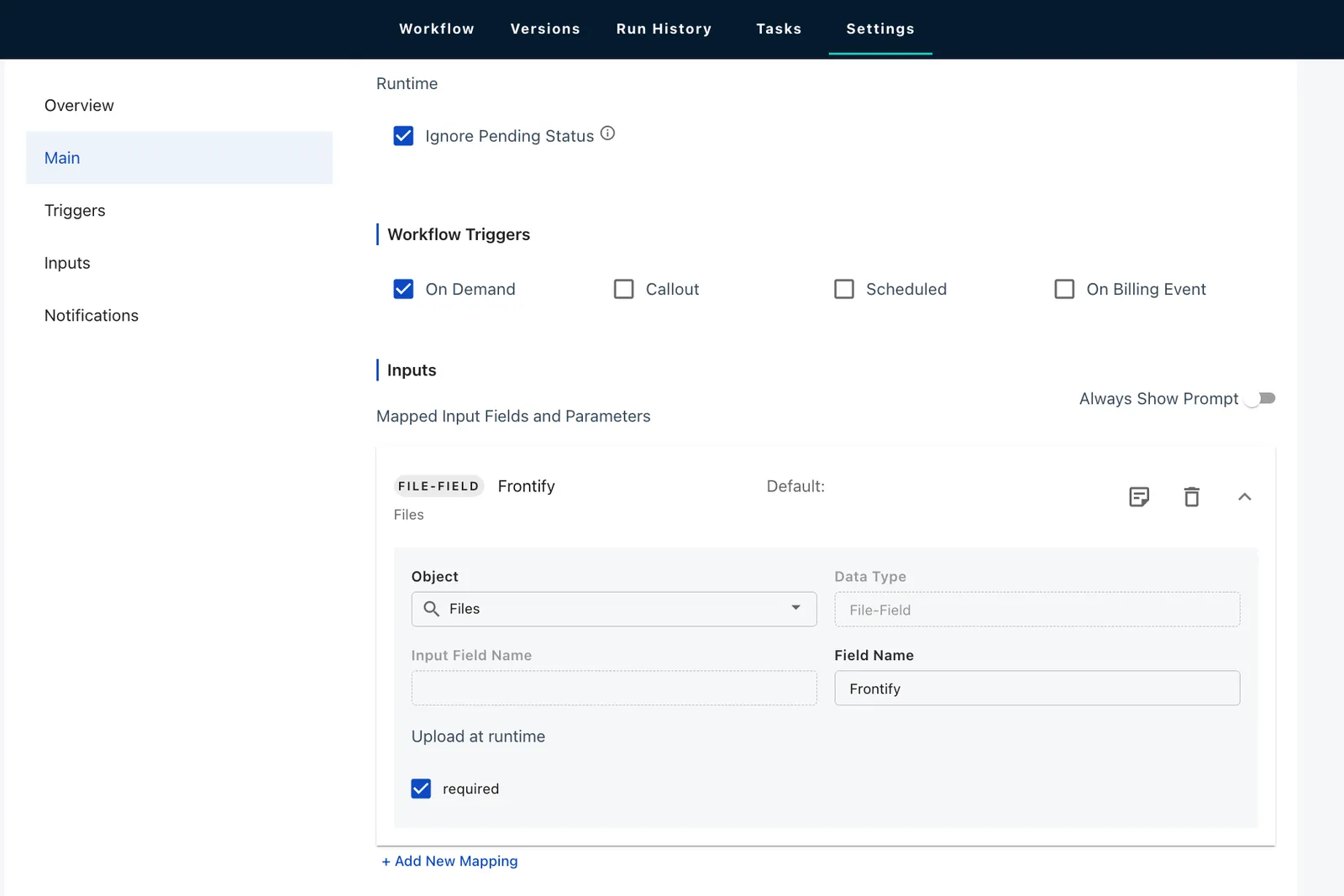
Open the workflow where you want to upload a CSV file, click the Settings tab of the workflow definition.
In the Mapped Input Fields and Params section, configure the input field settings for the file.
- Select Files in the Object list.
- Select File-Field in the Data Type list.
- Specify a name in the Field Name text box to identify the file.
- Select required to have the workflow prompt you to upload a file.
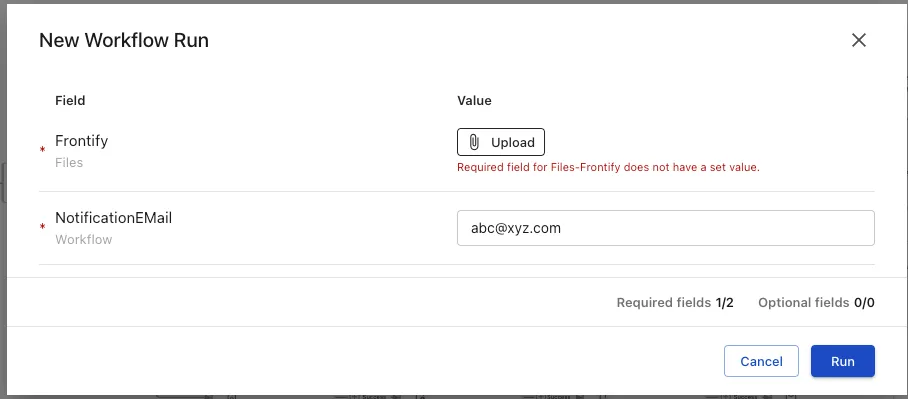
After the file is uploaded, you can select this file from data object lists in tasks or reference this file using Liquid templates in the format of Data.<file_name>.<field_name>.<field_name> .
For example, if we have uploaded a file with the file name file_2, we can select this file in an Iterate task.