

Working with GPG keys
Learn how to work with the GPG keys
To use the Encrypted Data Source Exports feature to retrieve the ACH numbers, you need to generate a GPG key pair and send the public key to Zuora Support. When exporting files, you need to use your private key to decrypt the files.
This is a Controlled Release feature. Contact
for information about using this feature.
This topic walks you through how to generate a GPG key pair and use your private key to decrypt files.
GPG keys tutorial for Windows
Follow the steps below if you are running a Windows system.
Step 1. Install GPG4Win
- Download and Install GPG4Win from http://www.gpg4win.org/download.html
- Select your preferred settings during the installation process.
- Skip the Define trustable root certificates dialog by checking Root certificates defined or skip configuration, click Next.
- Launch the application called “Kleopatra” from Start / Gpg4win / Kleopatra
Step 2. Generate a key pair and send the public key to Zuora
-
Launch the application from Start / Gpg4win / Kleopatra
-
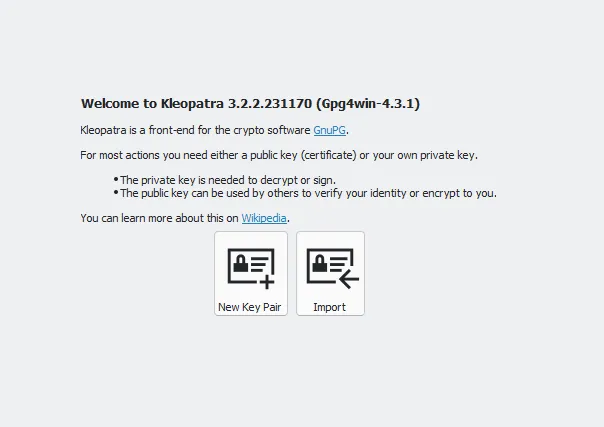
Create a New Key Pair and send the public key to Zuora Support
-
Create Personal OpenPGP key pair: Select File / New Certificate
-
On the Choose Certificate Format window, Select Create a personal OpenPGP key pair.
-
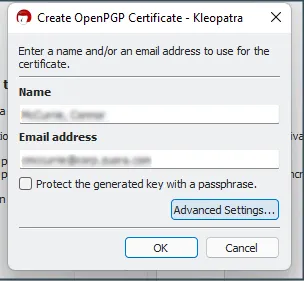
Enter your Name and Email address. Enter your real name and email address here or Zuora will reject the key.
-
Review and verify before pressing Create Key. The PGP key must be at least 3072-bit RSA. 4096-bit RSA is recommended.
-
Enter a Passphrase. **Note:**Note down the passphrase and keep it in a secure place. If you forgot the passphrase, you will not be able to decrypt files.
-
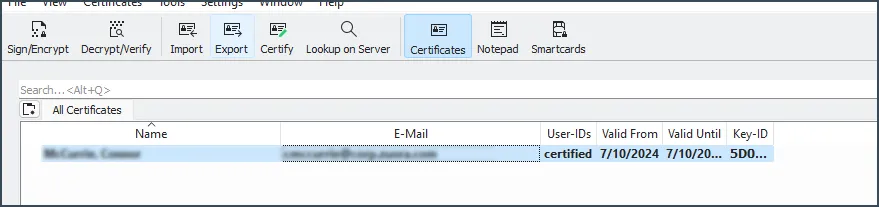
Export the Key Certificate. Select the certificate in the list and then select Export. Select a location to save this file, the filename will match the fingerprint shown in the dialog window in the previous step. This is your public key certificate.
-
Send the file saved in the previous step toZuora Support by creating a ticket.
-
Step 3. Decrypt an encrypted file sent by Zuora
-
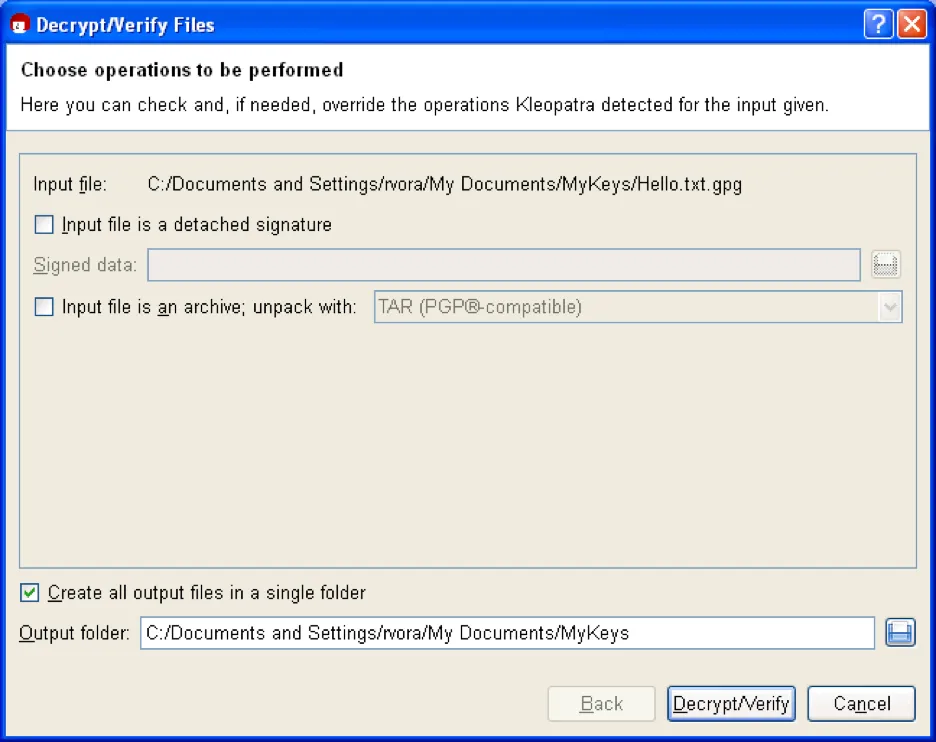
Select File / Decrypt/Verify files
-
Select the .gpg file sent by Zuora
-
Select the folder in which to decrypt files (leave the rest untouched)
-
Click Decrypt/Verify
-
You’ll be asked to enter your passphrase. If you don’t remember it, you won’t be able to decrypt files.
-
Verify the decrypted file has expected results
GPG key pair tutorial for Linux / Mac OS X
Step 1. Install GPG
Refer to the tutorials below to install GPG:
- For Linux:http://www.gnupg.org/download/index.en.html
- For Mac OS X:http://www.gpgtools.org/installer/index.html
Step 2. Generate a key pair and send the public key to Zuora
The instructions here are based on GPG MiniHowto.
-
Create your personal key:
- Run: gpg –gen-key
- Select RSA and RSA when prompted for which type of key to generate.
- Select a PGP key with at least 3072-bit RSA key size. 4096-bit RSA is recommended.
- Select 0 for never expire (or other values that you think are appropriate).
- Enter your real name and address, otherwise, Zuora would reject it.
- Enter a Passphrase. **Note:**Note down the passphrase and keep it in a secure place. If you forgot the passphrase, you will not be able to decrypt files.
-
List your generated Key:
- Run: gpg —list-keys
- Note the Key ID which is next to the string “pub 4096R/”, e.g., in “pub 4096R/D9859F2E”, “D9859F2E” is the Key ID.
-
Export Key using: gpg —export –a –o <key Id>.asc <Key Id>
-
Send the <key id>.asc file saved in the previous step to Zuora Support by creating a ticket.
Step 3. Decrypt an encrypted file sent by Zuora.
Decrypt the encrypted file using: gpg –d encrypted-file.gpg > decrypted-file
You’ll be asked to enter the passphrase. If you don’t remember the passphrase, you will not be able to decrypt the file.