

Allowed actions on a workflow
This reference describes the allowed actions on a workflow.
You can perform these actions to a workflow:
-
If it is a blank workflow, select + > On Start to add a starting task. A starting task is normally used to retrieve data from your data sources. The retrieved data are processed in subsequent tasks. You can have multiple starting tasks to initiate multiple sub-flows that run in parallel.
-
Hover over a task, click the More icon and then click Add to add a task immediately following this task. You need to select the trigger and the task type for the new task. Generally, triggers are the results of the current task upon which the following task will start. On Success and On Failure are the most common triggers. Triggers are different for different tasks. For example, for a manual approval task, the triggers are On Approval and On Rejection. For an iteration task, the triggers are For Each and On Failure.
-
Hover over a task, click the More icon and then click Delete to delete the task. When a task is deleted, the connecting arrows before and after the task are also deleted, thus creating loose tasks.
-
Click a trigger line to change the trigger type or delete the trigger.
-
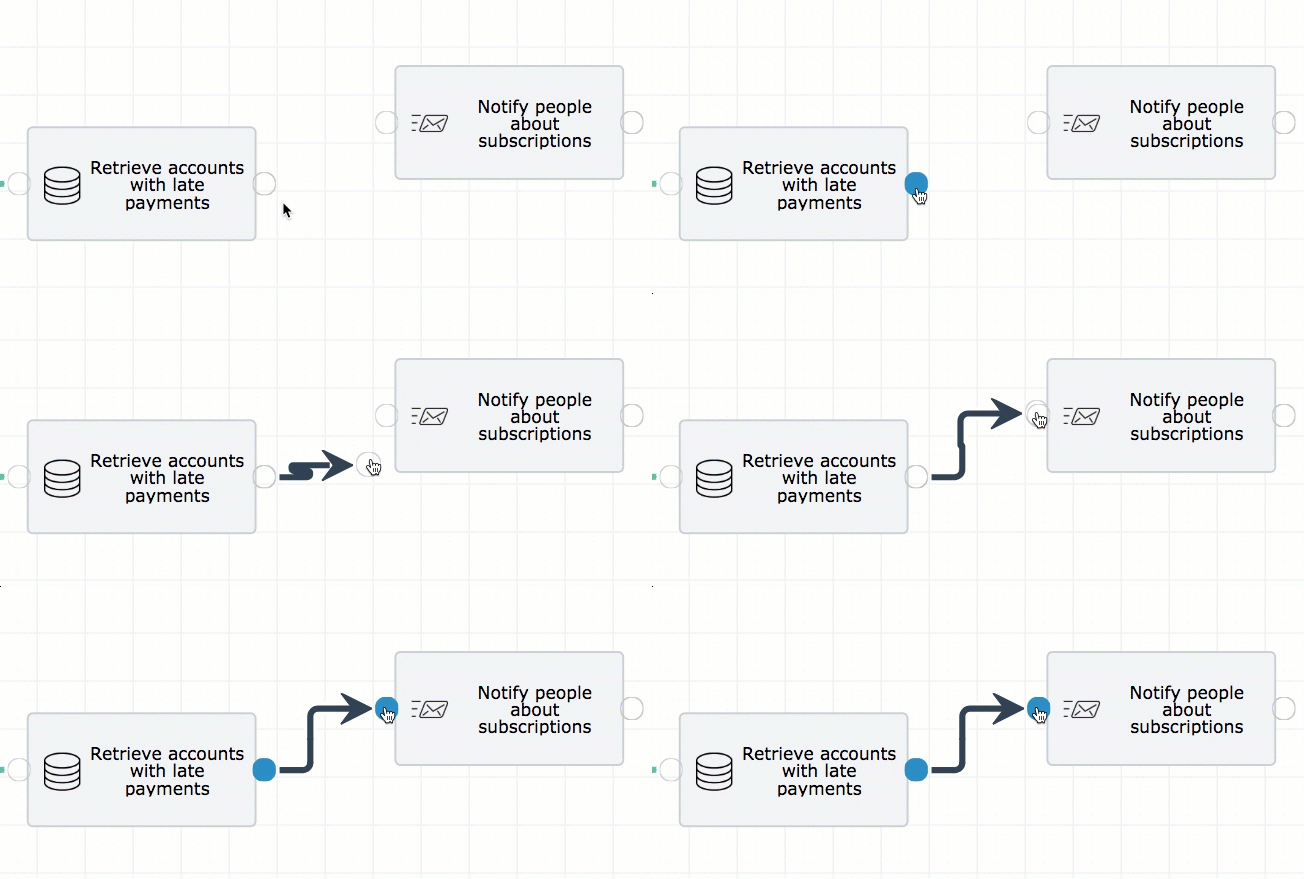
Connect loose tasks by dragging the finishing point of a task and dropping to the starting point of another task.
-
Hover over a task, click the More icon and then click Edit to configure the parameters for the task. A new window will open for you to configure the settings for the task. The available settings are different from one type of task to another.
You can clone tasks by hovering over the task and then clicking the More icon > Clone.