

Retrieve: Query - Task settings
Describes the task settings of the Retrieve: Query task.
-
Task Name - Enter the query task name.
-
Base Object - Click the dropdown to select a base object for the query. Base Object enables you to select the object Field, Conditions, and Basic.
You can only select the objects available in the Base Object drop-down list.
-
Id - Enter a tag for the base object ID, such as Account ID.
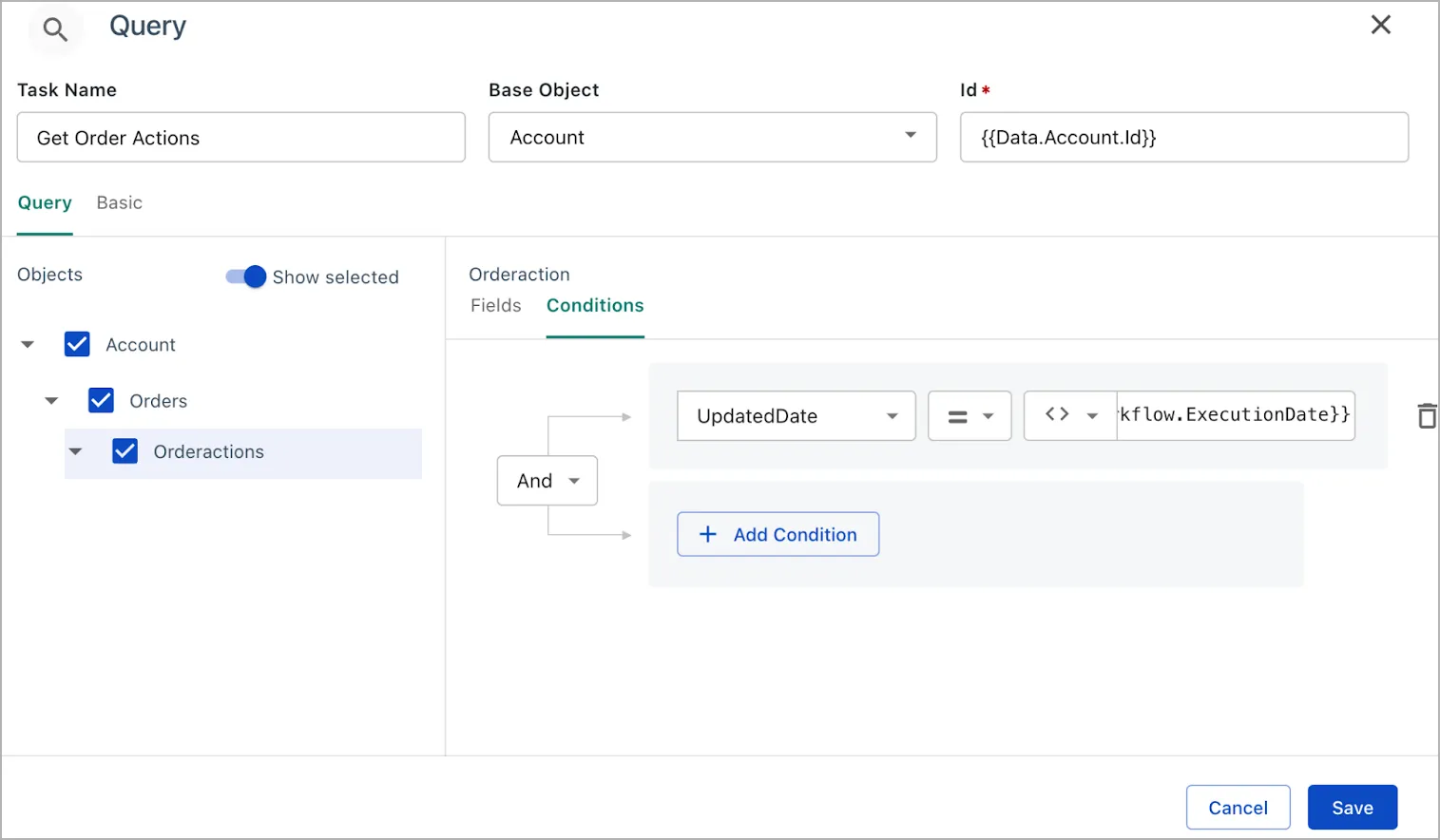
Query tab
Click the checkbox under the Query tab to select the query for the base object. Based on the selected queries, you can configure the fields and conditions for the base object.
Basic tab
- Payload Placement - Payload Alternative Placement by default, the data payload for a query task is placed under the data object selected for the query. To avoid conflicts with concurrent query tasks that save multiple copies of data to the same object, you can specify an alternative placement for this query task. For example, if you query for the balance data in the Account object, the retrieved data will be placed under Account by default and can be referenced with “Account.Balance” in subsequent tasks. If you specify “Account_0” as the alternative payload placement, the retrieved data are placed under Account_0 and can be referenced with “Account_0.Balance”.
- Search Tags - Enter the liquid tags used for searching in the logs.
- Strict Variables - Switch on the Strict Variables toggle to verify the Liquid expression specified in this task.
- Skip Validation - Switch on the Skip Validation toggle to skip the basic task validation on the task setting UI and allow the Workflow task to be saved.
If you want the Workflow to stop when no data is returned in this query task, select Stop subsequent tasks if query returns no records.
Fields tab
- Object - Select the data object to query for data from. You can switch on the Show selected toggle to view only the selected objects. The query returns at most 200 records of each selected associated object.
- Fields - Click a data object from the left panel to display all available data fields in that object.
Conditions tab
Select a query under the Query tab. Under the Conditions tab, the dropdown lists will help you enter object fields and Workflow data fields in your query.
Not all fields are currently available for conditions. You can use a downstream task to do any further filtering.
Concurrency Mode
Concurrency Mode: Controls whether Workflow processes tasks in a single or multi-threaded manner for this task type. Select Sequential to single-thread, or Parallel to allow multi-threaded processing.
If you select Parallel, the Max Concurrency setting controls the maximum number of threads for this task type that can be utilized. You can specify a value from 1 up to the allowed maximum for this task type. A value of 1 behaves the same as Sequential processing.