

Run a deployment process
Learn how to run a deployment in Deployment Manager and access instructions to revert it.
Select a Source Tenant. The Target Tenant is populated automatically and cannot be modified.
- If the required source tenant is not listed, you can create one by selecting + Add New Source Tenant. For more information, see Create a Source Tenant.
- To create a deployment by selecting a configuration template, for more information see Create a deployment.
Click Next. On the Select step, use the toggle to select the component(s) to migrate from the source tenant to the target tenant. If you are migrating notifications, select the Notifications component.
(Optional) Use the Quick Filter option to filter the component(s) and then click Next.
For more information, see use quick filters.
On the Compare and Deploymentstep, use the left navigation panel to select the component or sub-component to migrate. To deploy a notification, expand the following hierarchyNotifications > Communication Profile > Notification.
Notifications are available under Communication Profile; they are not presented as a separate top-level deployment component. You can access the notification configuration from Extension Studio > Events & Notifications.
You can use the Show Differencetoggle to quickly view the differences between the source tenant and the target tenant. Parameter comparison is displayed on the right panel. Click on the label of each parameter on the left navigation panel to understand the compare results on the right navigation panel.The components that are different are displayed in red. For more information about each status, see Icons and description.
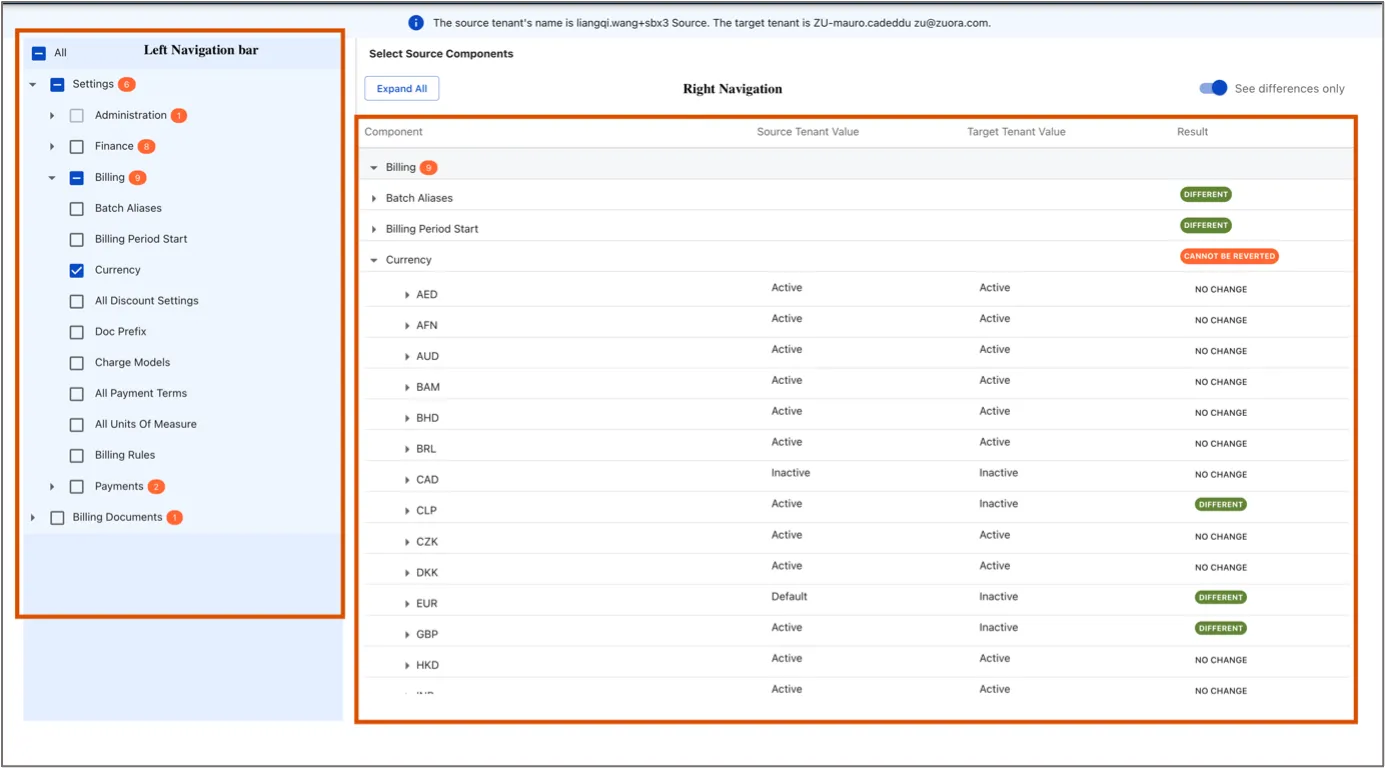
Select the checkboxes of the component(s) or the sub-components that you want to migrate from the source tenant to the target tenant, and select Deploy.
Click Confirm on the confirmation screen. In the Deployment Setup dialog box, select whether you want to receive an email notification for the deployment result, and then select Start Deployment. For more information on email configuration, seeConfigure email list.
The deployment run will appear on the Deployment Run list with a status of Deploy in progress.
Click Refresh to view the status.
After successful deployment, you can download the comparison results for reference. Select View Logs on the appropriate deployment card and select Download.
To revert a deployment, see Revert a deployment.